Studio Code Server
I assume you already have installed the Studio Code Server. If you haven't: It is a simple Add-On. Just follow the official instructions: https://github.com/hassio-addons/addon-vscode/blob/main/vscode/DOCS.md
Studio Code Server will then be installed as a docker container. (Don't worry. No need to know anything about docker. This works in the background)
Preparing
Claude needs NodeJs which isn't in the studio code server docker. But don't worry, this is easy to solve. You could connect to the docker and install the required packages using app-get. But while this works this has two disadvantages. First it is a bit more complicated if you are not at home with Linux Systems and most important: Any update of the Addon would kill NodeJs and you would have to do this all over again.
Thankfully the Add-On devs thought of an easy way to do that for you. Just go to Settings - Add-Ons - Studio Code Server. There go to Configuration and in the "packages" enter "npm" and then "nodejs". Do not enter both at the time. Each one of them by enter. After that there should be two bubbles on top:
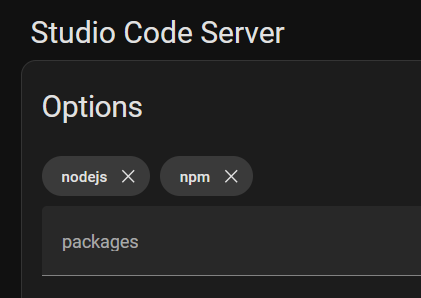
If you prefer editing in yaml, here is your content:
packages:
  - nodejs
  - npm
init_commands: []
Save and restart the addon. Don't be alarmed if this takes a LONG time. There will have big packages to be downloaded and installed into that container. This will take minutes even on a fast machine and especially if using a Raspberry Pi.
Adding Claude
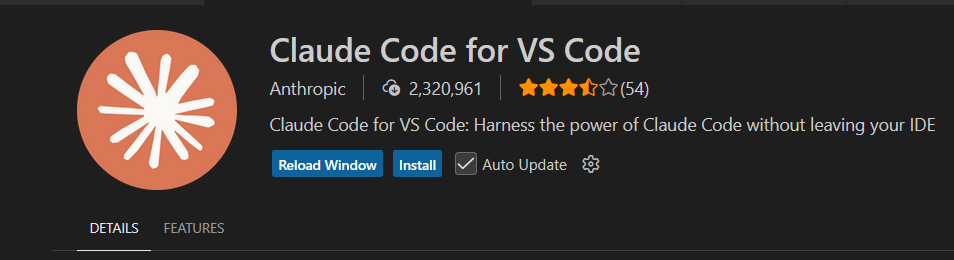 Now you can switch to the code server. Select Extensions on the left side, enter "Claude" into the search and install "Claude Code for VS Code". After that you should have that typical "Claude Star" on the top right corner. You will be greeted with the authentication method. Select the one that matches your account. (Most likely Claude.ai Subscription)

If after using the Login clicking "Open" does not work because you get redirected to a local url use the url instead that is shown in the textbox:
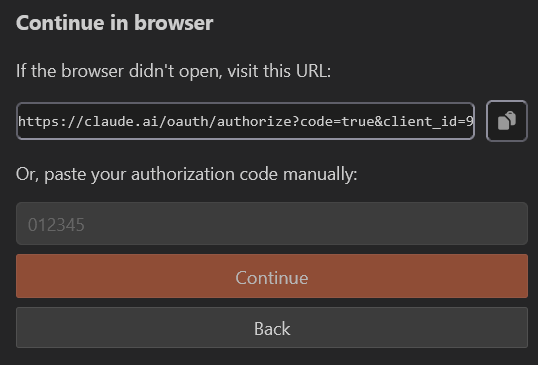
Just copy paste that url manually and paste the returning code into Studio Code.
Using Claude
Now you can open Claude using the star and let him do the work
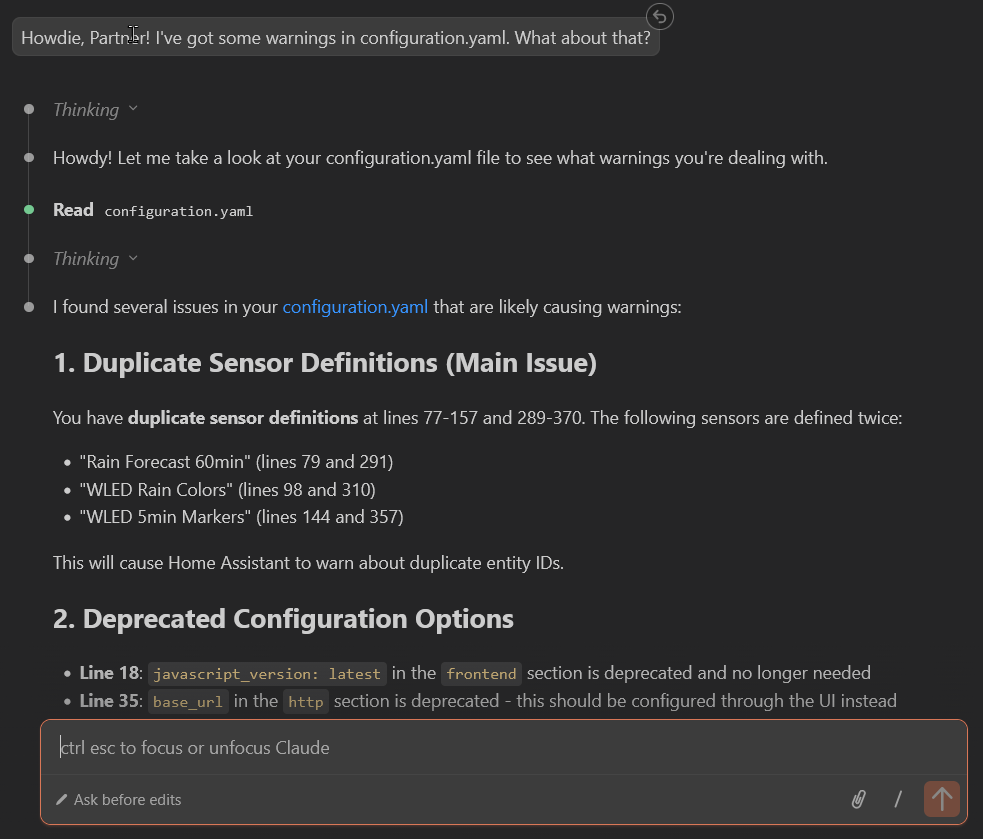
That is it. Now you can use claude in Home Assistant Config Files